Add a choice question
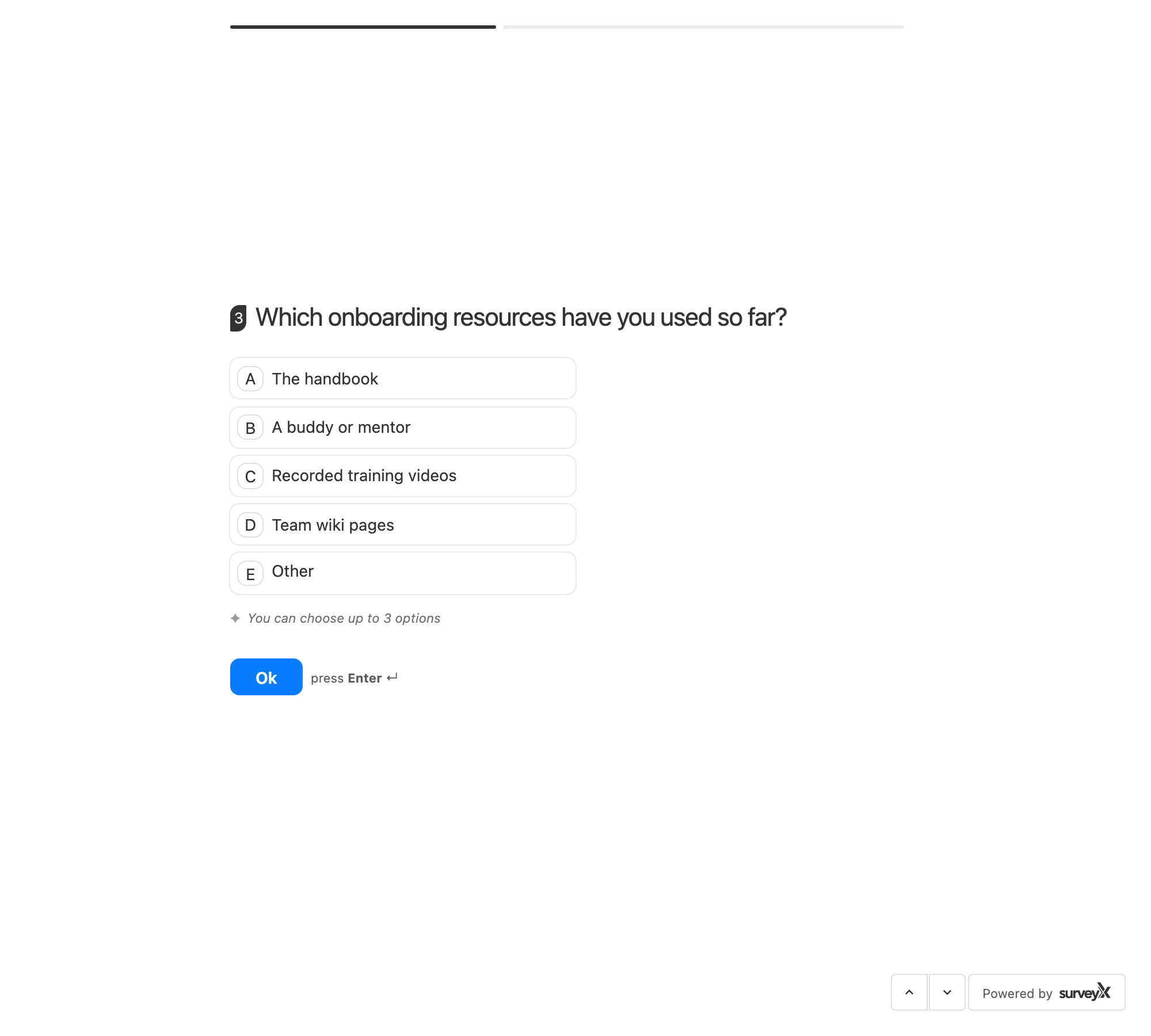
Five of SurveyX's 13 question types are choices from a list you define — multiple choice, multi-select, dropdown, image choice, and multi-image choice. All five are free.
Multiple choice and multi-select
These are one question type, called Checkbox in the type picker. The Maximum Choice setting decides which one a respondent sees:
- At 1 (the floor SurveyX enforces), respondents see radio buttons and can pick one answer option.
- Above 1, respondents see checkboxes and can pick up to that many.
| Setting | What it does | Default | Limits | Edition |
|---|---|---|---|---|
| Maximum Choice | Switches between single-select and multi-select, and caps how many a respondent can pick | Not set in the panel; SurveyX floors it at 1 | Minimum 1; no upper bound | Free & Pro |
| Randomize Order | Shows the answer options in a different order to each respondent | Off | — | Free & Pro |
| Show Other Option | Adds an "Other" answer option with its own text box | Off | — | Free & Pro |
| Answer options | The list of choices respondents pick from | — | At least 1; no maximum found | Free & Pro |
| Answer image | An image on each answer option, for use as an image choice question | None | Uploaded from the WP media library | Free & Pro |
What respondents see: a list of answer options, as radio buttons or checkboxes depending on Maximum Choice. With Show Other Option on, an extra "Other" option appears with a text field.
Dropdown
Dropdown is always single-select — there's no Maximum Choice setting for it, and no Show Other Option either.
| Setting | What it does | Default | Limits | Edition |
|---|---|---|---|---|
| Randomize Order | Shows the answer options in a different order to each respondent | Off | — | Free & Pro |
| Answer options | The list of choices respondents pick from | — | At least 1; no maximum found | Free & Pro |
What respondents see: a searchable dropdown — they can type to filter the list, use the arrow keys, and pick exactly one option.
Image choice and multi-image choice
Same mechanic as Checkbox, but every answer option is an image instead of text. This is one type in the picker, called Image Checkbox, and Maximum Choice splits it the same way:
- At 1, respondents pick one image from a grid.
- Above 1, respondents pick several images from a gallery.
| Setting | What it does | Default | Limits | Edition |
|---|---|---|---|---|
| Maximum Choice | Switches between single-select and multi-select | SurveyX floors it at 1 | Minimum 1; no upper bound | Free & Pro |
| Randomize Order | Shows the images in a different order to each respondent | Off | — | Free & Pro |
| Answer layout | Grid or a bulleted list | Grid | Grid or list | Free & Pro |
| Answer image | The image for each answer option | Required per answer option | Uploaded from the WP media library | Free & Pro |
Image choice has no Show Other Option — that control only exists on the plain Checkbox settings panel.
What respondents see: an image grid (single-select) or an image gallery they can multi-select (above Maximum Choice 1), laid out as a grid or a list depending on Answer layout.
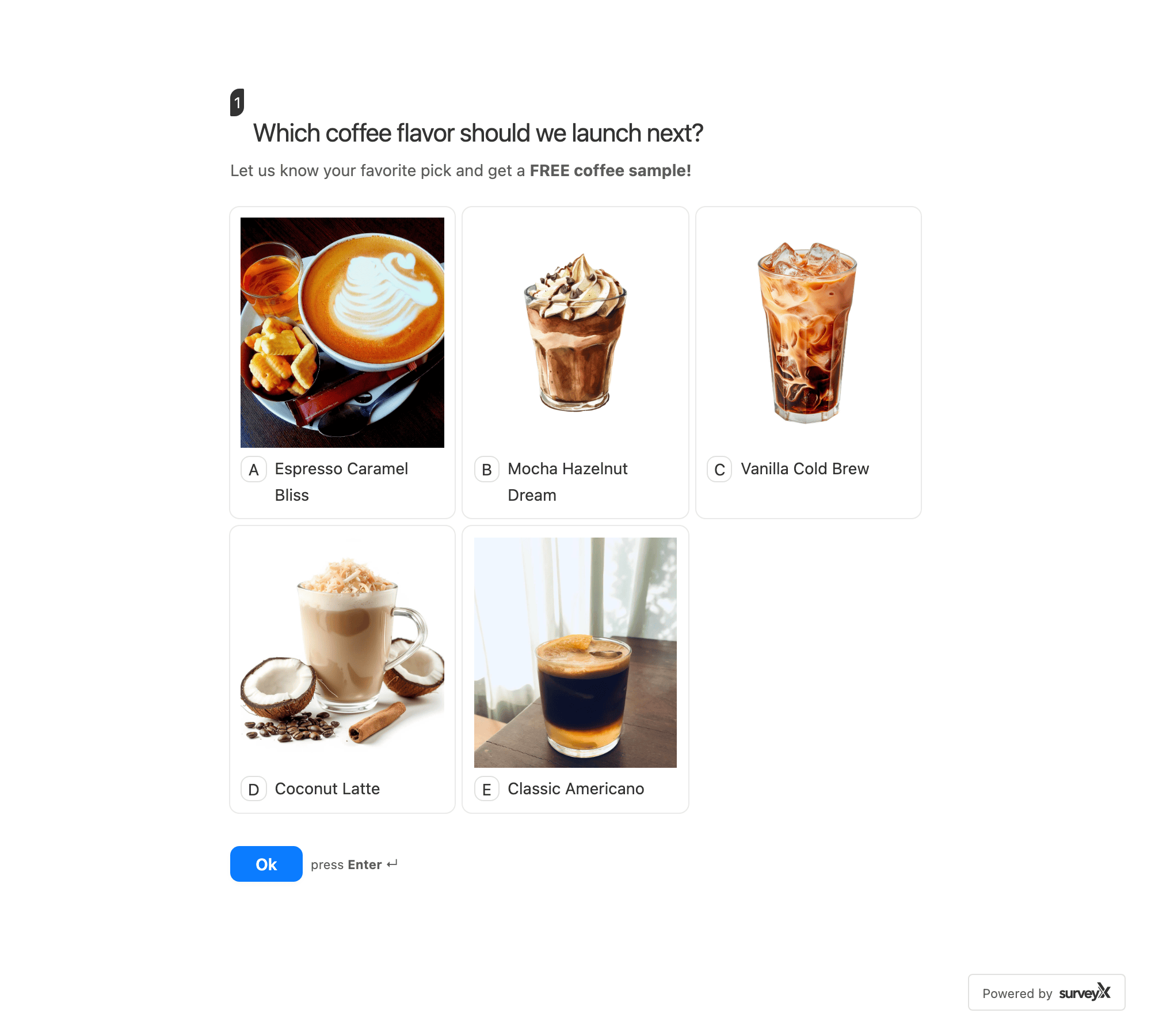
A site-wide setting can add letter labels (A, B, C…) in front of answer options on checkbox, dropdown and image-checkbox questions. It applies to every question of these types, not per question — see Display options.
Troubleshooting
A Checkbox question shows radio buttons when I wanted checkboxes. Maximum Choice defaults to 1, which is single-select. Raise it above 1.
Dropdown has no Maximum Choice or Show Other Option. By design — dropdown is always single-select and has no "Other" option.
Image choice has no Show Other Option. Only the plain Checkbox type offers it.
I set Maximum Choice higher than my number of answer options. SurveyX doesn't cap Maximum Choice against the number of options you've added, so respondents can select every option you have if you set it that high.