Add and manage questions
The Questions section is where you build out the body of the survey. What you can do here depends heavily on your edition.
Free opens directly on a single question with no add, reorder, clone or delete controls. Adding more is a Pro feature. See pricing →
The free one-question cap
On free, the Questions section shows exactly one question, and there is no button to add another — the "Add Question" row is a permanent upgrade link, shown for every survey type except Quick Vote.
This cap is enforced by the editor's interface, not by the server: if a survey ends up with more than one question by another route, opening or saving it in free is blocked. That happens with one real scenario: importing a multi-question template on free. The import succeeds and the survey appears in your dashboard, but the moment it has more than one question, free locks it — opening it shows "Pro required" instead of the editor. Stick to single-question templates on free, or import on Pro.
Adding, reordering, cloning and deleting questions (Pro)
- Open the survey's Editor tab, then the Questions section.
- Click Add Question to append a new one. It starts as the survey's default question type.
- Drag a question by its handle to reorder it. Reordering is not available on Quick Vote surveys.
- Click the Clone Question icon to duplicate a question, including its answer options. Cloning is not available on Quick Vote surveys.
- Click Delete on a question to remove it; a confirmation dialog appears first. The delete button is disabled once only one question is left, with the tooltip "At least one question is required."
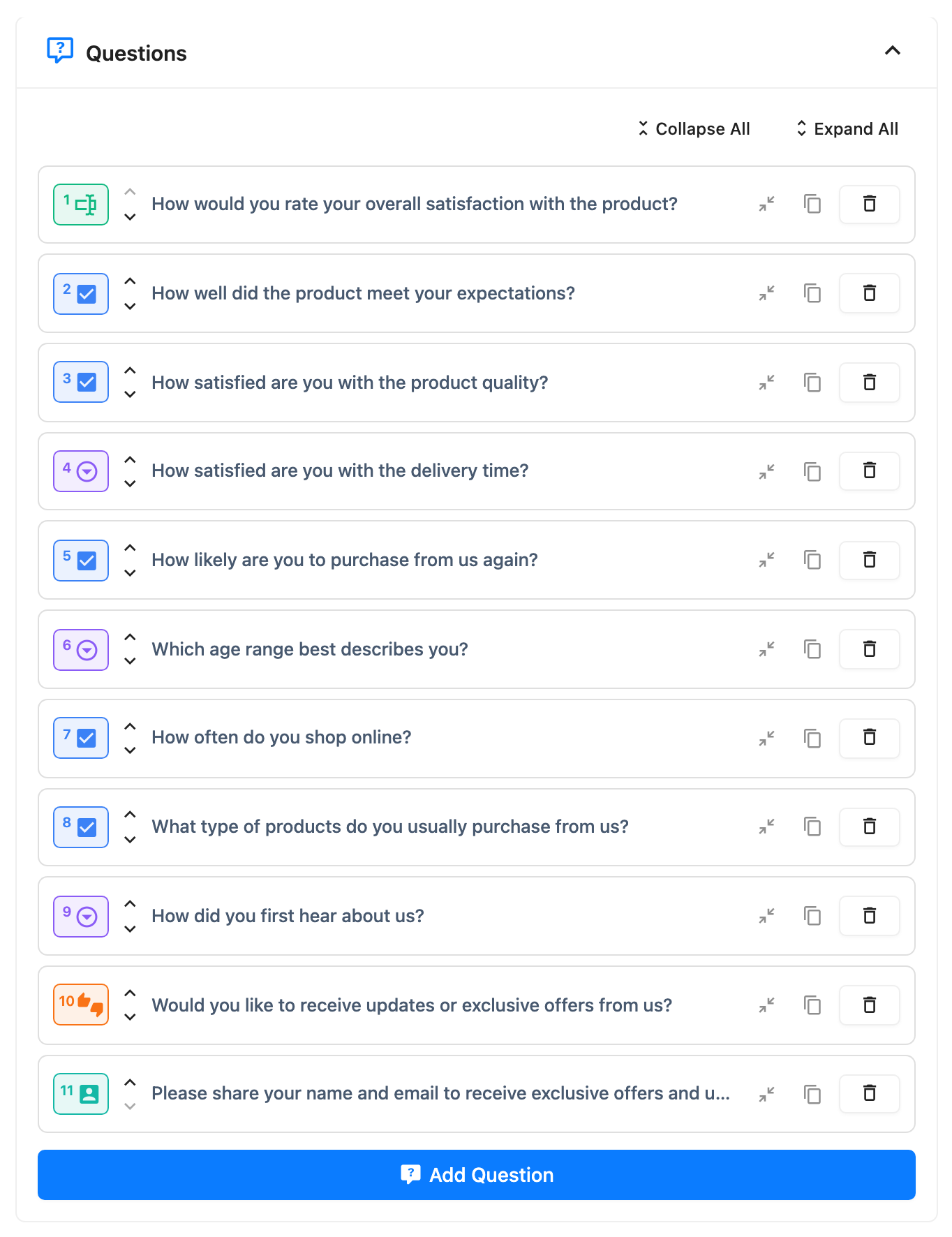
There is no maximum number of questions per survey in Pro.
Per-question fields (both editions)
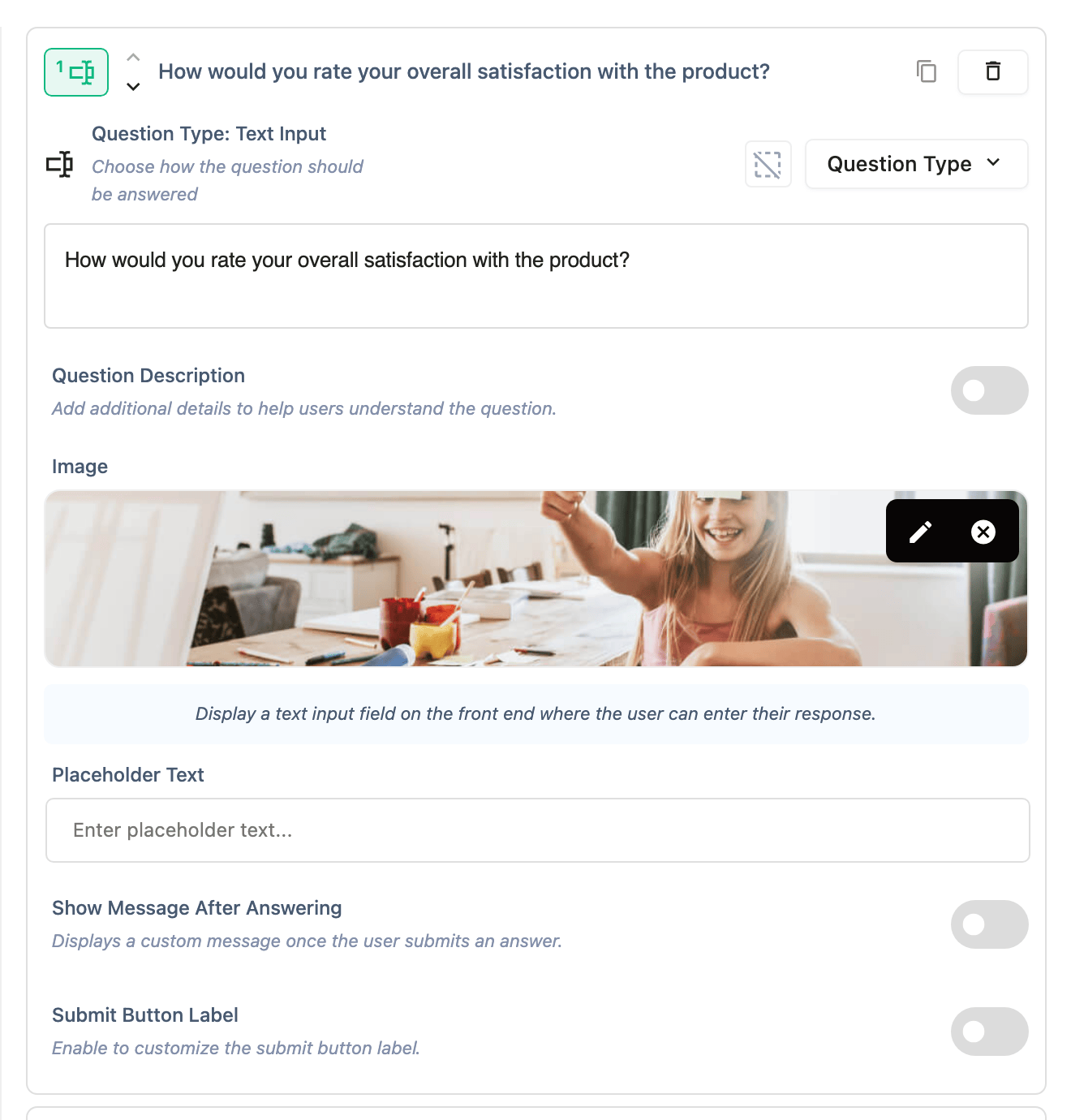
Every question, on either edition, has:
- A type picker.
- A rich-text title.
- A Question Description toggle that reveals a second rich-text block below the title.
- An image you can attach or remove.
- A required toggle — a single icon button. This does not appear on a Contact Info question, where "required" is worked out from whether any of its individual fields (name, email, phone, company) are marked required.
Rich text in a question's title and description goes through the same filter as the survey title: links, bold, italic, underline and lists survive; anything else is stripped silently when you save.
Changing a question's type after you've added answer options can discard those options. The editor asks you to confirm before making a change that would do that.
Show a message after someone answers
Show Message After Answering displays your own text to a respondent once they submit an answer to that question. It is per question, off by default, and works the same on free and Pro.
The control sits on the survey's Editor tab, inside the question itself. It is the second-to-last control, below the question type's own settings and directly above Submit Button Label.
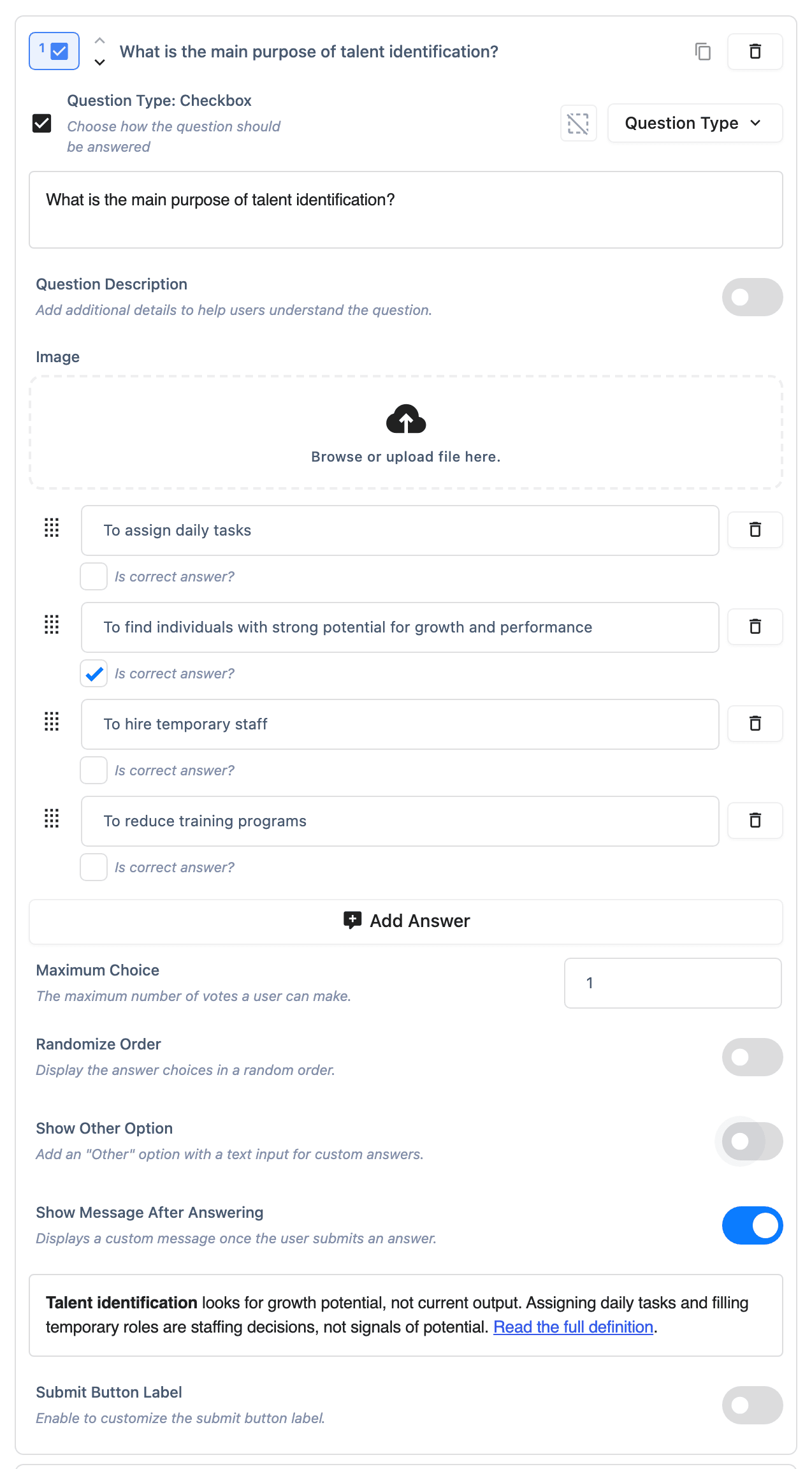
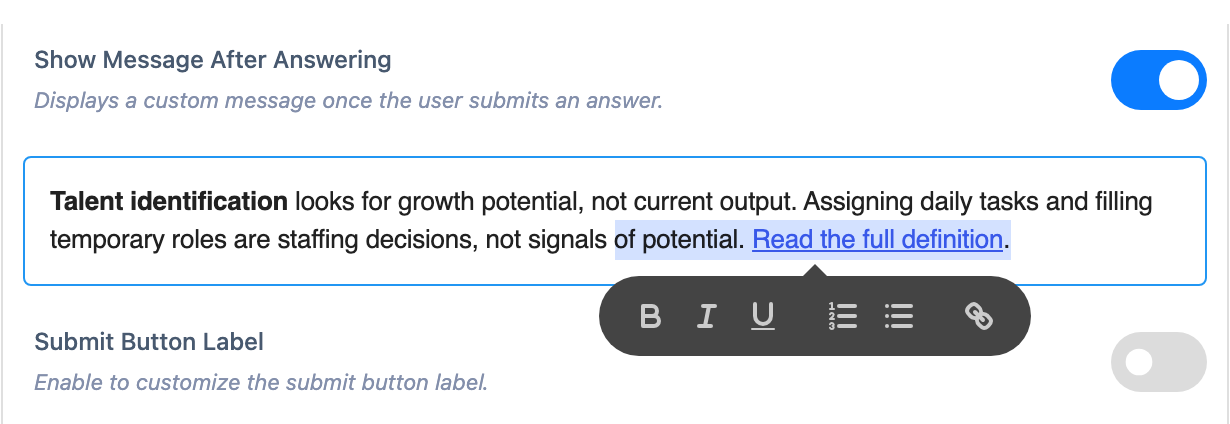
Turning the switch on reveals a rich-text box. Its toolbar carries six controls: bold, italic, underline, numbered list, bulleted list and link. All six survive to the respondent.
Typing @ does nothing in this box. Recall works in a question title and in a result band title,
but not here, so you cannot pull a respondent's earlier answer into the message. See
Recall an earlier answer with @.
The respondent gets the message as a notification, not as a screen of its own. It stays for ten seconds, with a progress bar counting that time down, and the countdown pauses while the pointer is over it. A Dismiss button closes it early. If a second message fires before the first has cleared, the two stack rather than replace each other.
The message fires whether the answer was right or wrong, and there is no way to vary the text by correctness. The survey does not wait for it either: the respondent moves on immediately, so the message sits over the next question rather than holding the survey there. Nor can it be held back to the end of the survey.
A Quick Vote survey ignores this setting, whatever you type in the box.
Settings reference
| Field | What it does | Free/Pro | Limits |
|---|---|---|---|
| Add / reorder / clone / delete | Build out the question list | Pro only | No maximum in Pro |
| Question type | Chooses what a respondent answers with | Both | 7 free types, 13 total in Pro |
| Title | Rich-text question prompt | Both | Required to save |
| Description | Extra rich-text detail below the title | Both | Off by default |
| Image | Attached to the question | Both | — |
| Required | Blocks submission until answered | Both | Not shown on Contact Info |
| Show Message After Answering | Shows your own message once that question is answered | Both | Off by default; never shown on Quick Vote |
What respondents see
- Only the questions you've added, in the order you set them (drag order on Pro; the single question on free).
- A required question that's left blank stops the respondent from moving on.
- Any description text you added appears below the question title.
- A ten-second notification after answering, on each question where you turned on Show Message After Answering.