Manage your surveys from the dashboard
The dashboard is the survey list you land on after logging in: every survey you've created, with the columns and actions to manage each one. This page covers the list itself, then the template library and revision history that sit alongside it.
Columns
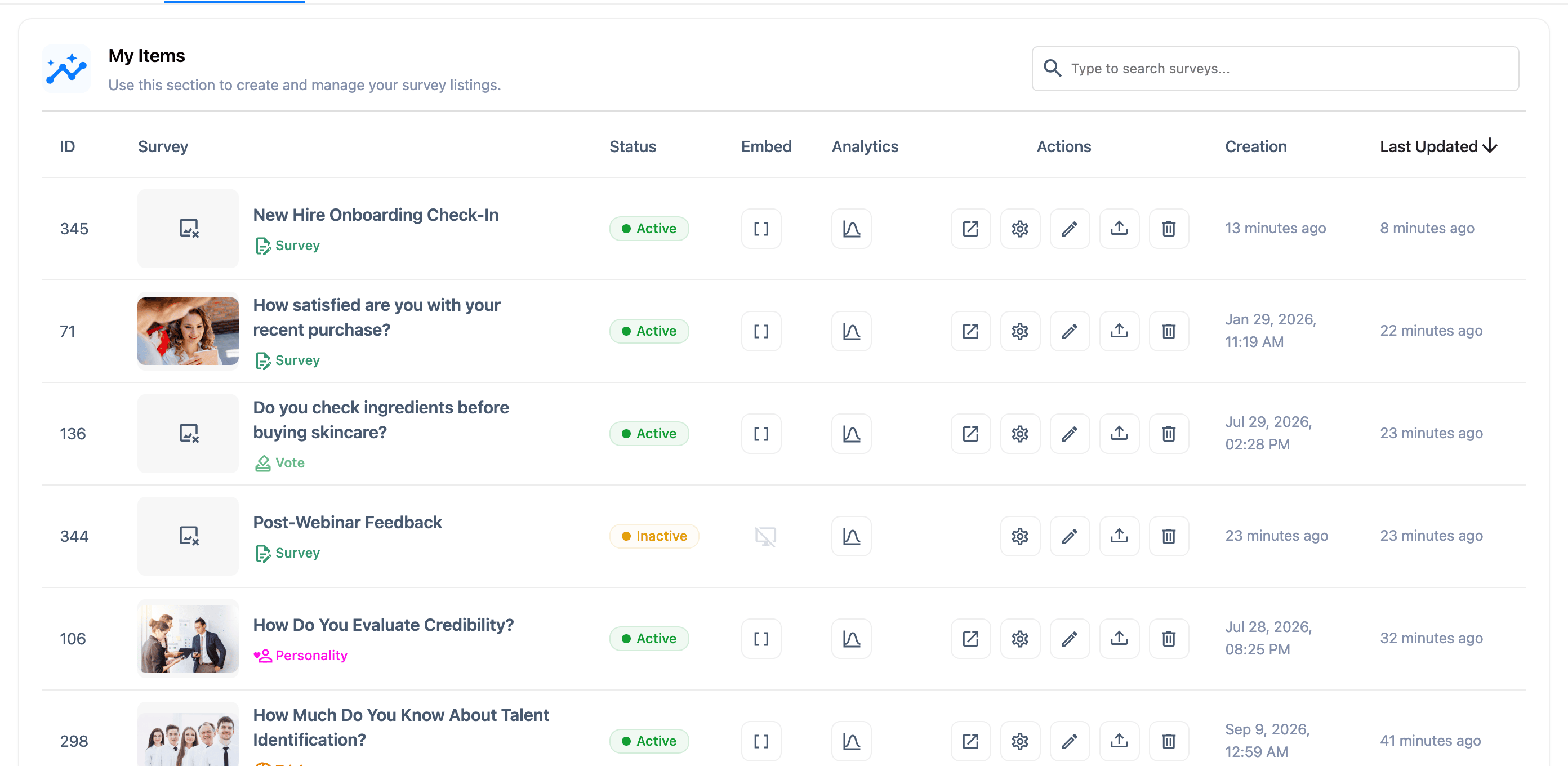
| Column | Shows | Sortable |
|---|---|---|
| ID | The survey's unique ID | Yes |
| Survey | Title, with the survey's cover thumbnail and type | Yes |
| Status | Active or Inactive | Yes |
| Embed | The survey's shortcode, or a disabled icon while it's inactive | No |
| Analytics | A link to the survey's Analytics tab | No |
| Actions | View page, General, Editor, Export (Pro), Delete | No |
| Creation | When the survey was created | Yes |
| Last Updated | When it was last saved | Yes |
A new survey always starts Inactive. Activate it from the General or Editor tab before it has a live page or a working shortcode.
Row actions
- View page — opens the survey's live page in a new tab. Only shown once the survey is Active and has a page URL.
- General — opens the survey's General tab: status, publishing and Pro's integration settings.
- Editor (pencil icon) — opens the survey's Editor tab: questions, cover, closing and result screens.
- Export Survey (Pro only) — downloads the survey as a
survey-{id}.surveyx.jsonfile you can re-import later. - Delete — permanently deletes the survey. A confirmation dialog warns "All associated vote data will also be permanently removed" before it runs. Deleting also removes that survey's questions, answers, responses and revision history — there's no trash and no way to undo it.
Copy a survey's shortcode
Click the Embed column's icon once to copy the survey's shortcode — [surveyx id="123"] — to
your clipboard. Double-click it to open a dialog with more embed detail. The icon shows a
disabled "Survey Inactive" state instead until you activate the survey.
Search, sort and pagination
Type into the search box to filter the list by title, or by an exact ID match; results update automatically as you type, after a short pause. There's no status filter and no bulk actions — search is the only way to narrow the list, and every row action runs on one survey at a time.
Every column except Embed, Analytics and Actions can be sorted. The list opens sorted by Creation, newest first.
Choose how many rows to show per page — 5, 10, 25, 50 or 100, 10 by default. Your choice is remembered the next time you open the dashboard.
The template library
Skip building from scratch by importing one of SurveyX's templates. Templates are fetched from surveyx.co rather than bundled with the plugin, and your browser caches what it fetches for 24 hours — click Refresh to pull the current catalogue sooner.
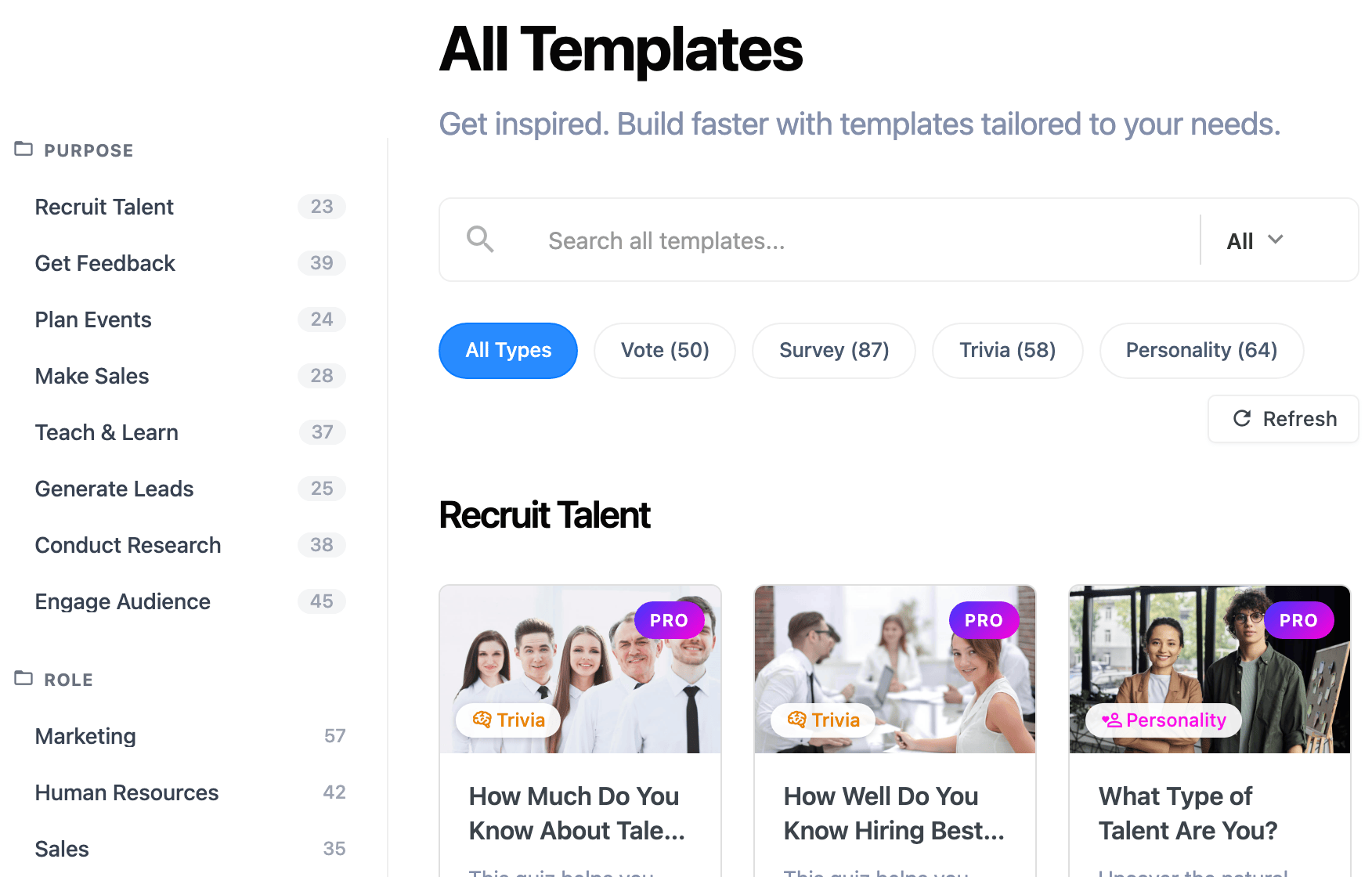
Browse or narrow the library with:
- Search, by keyword.
- A type filter — one of the four survey types, or all.
- A version filter — All, Basic (works on free), or Pro.
- Purpose, Role and Topic filters in the sidebar, built from the catalogue itself.
Each template card has two actions: Preview, to see its questions before committing, and Use it, to import it straight into a new survey.
Importing works the same on both editions, and free doesn't check a template's question count first. Import a template with more than one question on free and the survey is still created — but it's immediately Pro-locked: it shows greyed out in the dashboard, and opening it shows "Pro required" instead of the editor. Stick to single-question templates on free, or import on Pro.
Revision history
Every survey keeps its own edit history automatically, on both editions:
- 1 autosave — written 5 seconds after you stop editing, overwriting the previous one.
- Up to 5 snapshots — saved automatically, no more than once every 5 minutes.
That's up to 6 stored revisions per survey. Restoring one loads its content back into the open editor — you still have to click Save for it to take effect. See Autosave and revisions for how the restore dialog works.
Deleting a survey deletes its revision history along with it, permanently.