Send responses to a Google Sheet
SurveyX can append a row to a Google Sheet every time someone completes your survey. It works by handing you a small script to paste into your own sheet — it never connects to your Google account, and SurveyX never accesses your spreadsheet directly.
Google Sheets needs an active Pro licence. See pricing.
You'll need a Google Sheet you can edit. Setup is per survey: each survey has its own script and its own sheet.
Set it up
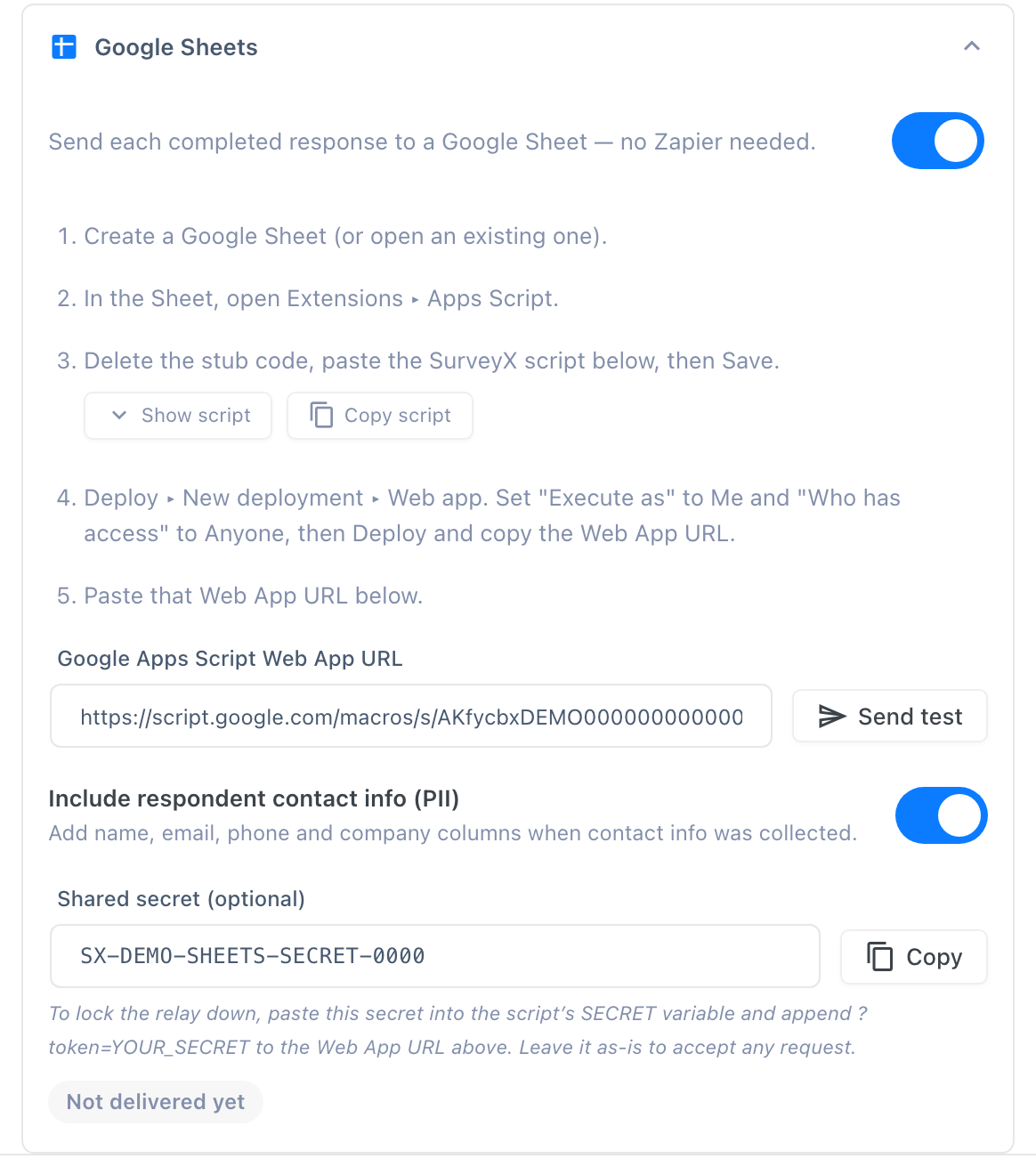
- Open the survey's General tab, and in the Integrations card click Set up integrations (or Manage integrations once you've configured one). In the Google Sheets section, turn on the toggle.
- Click Show script, then Copy script to copy the Apps Script SurveyX provides.
- Open your Google Sheet, then go to Extensions → Apps Script.
- Delete any starter code in the editor, paste in the script, and save it.
- Click Deploy → New deployment, choose type Web app, set Execute as to Me, and set Who has access to Anyone.
- Click Deploy, authorize the script when Google asks, and copy the Web app URL it gives you.
- Back in SurveyX, paste that URL into Google Apps Script Web App URL and save the survey.
- Turn on Include respondent contact info (PII) if you want Name, Email, Phone, and Company columns added — only for fields the respondent actually filled in.
- Click Send test to confirm the connection before you rely on it.
What happens on each response
Every completed response appends one row to the first sheet in the spreadsheet, not a tab you choose. On the very first write, the script builds the header row from your question titles (plus the PII columns, if you turned them on); any question you add later gets its own new column the first time a response answers it. A multi-select, matrix, or file-upload answer is flattened into one comma-joined cell.
What respondents see: nothing. The row appears in your sheet after they submit, with no on-screen sign of it.
Restricting who can call your script
Apps Script can't read the signature header SurveyX sends, so it has its own, optional gate: a
SECRET value inside the script, checked against a ?token= parameter on the URL. You don't
invent this value — SurveyX generates it for you the first time you save the survey. Once it's
generated, a Shared secret (optional) field appears below the Web App URL with the value and a
Copy button.
To turn the gate on: click Copy next to Shared secret (optional), paste that value into the
script's SECRET variable in place of the empty string, save the script, then append ?token=
plus that same value to the Web App URL you pasted into SurveyX. Leave the script's SECRET as
'' to accept any request instead.
Troubleshooting
No rows are appearing. Confirm the script was deployed with Execute as: Me and Who has access: Anyone — any other combination blocks SurveyX's request. Then confirm the Web App URL was pasted into SurveyX correctly, and that at least one response has actually been completed — a partial response never triggers a row.
Rows are landing in the wrong tab. Not fixable from settings — the script always writes to the first sheet in the spreadsheet. Reorder your tabs so the one you want is first, or move the data after it lands.
Status shows blocked or failed. Same rules as webhooks: the Web App URL
has to be reachable over https and can't resolve to a private address, and delivery gets 3
attempts over roughly 6 minutes before it's marked failed.
I added a ?token= and now nothing arrives. The token in the URL has to match the SECRET
value inside the deployed script exactly. If you changed one without the other, redeploy the
script or re-paste the URL.