Show a closing or result screen
The screen a respondent sees after their last answer is either a Closing screen (a plain thank-you) or a Result screen (one that changes based on their answers). Which one you get to build depends on the survey type: Quick Vote and Survey use Closing; Knowledge Quiz and Personality Test use Results, on top of Closing.
Closing screens
- Open the survey's Editor tab, then the Closing section.
- Write a title and, if you turn on the description toggle, a description. Both are rich text.
- On Pro, click Add Closing to create more than one, and clone or delete existing ones.
Free supports exactly one closing screen. Pro supports any number, and each one can use answer recall in its title and description — free's single closing cannot.
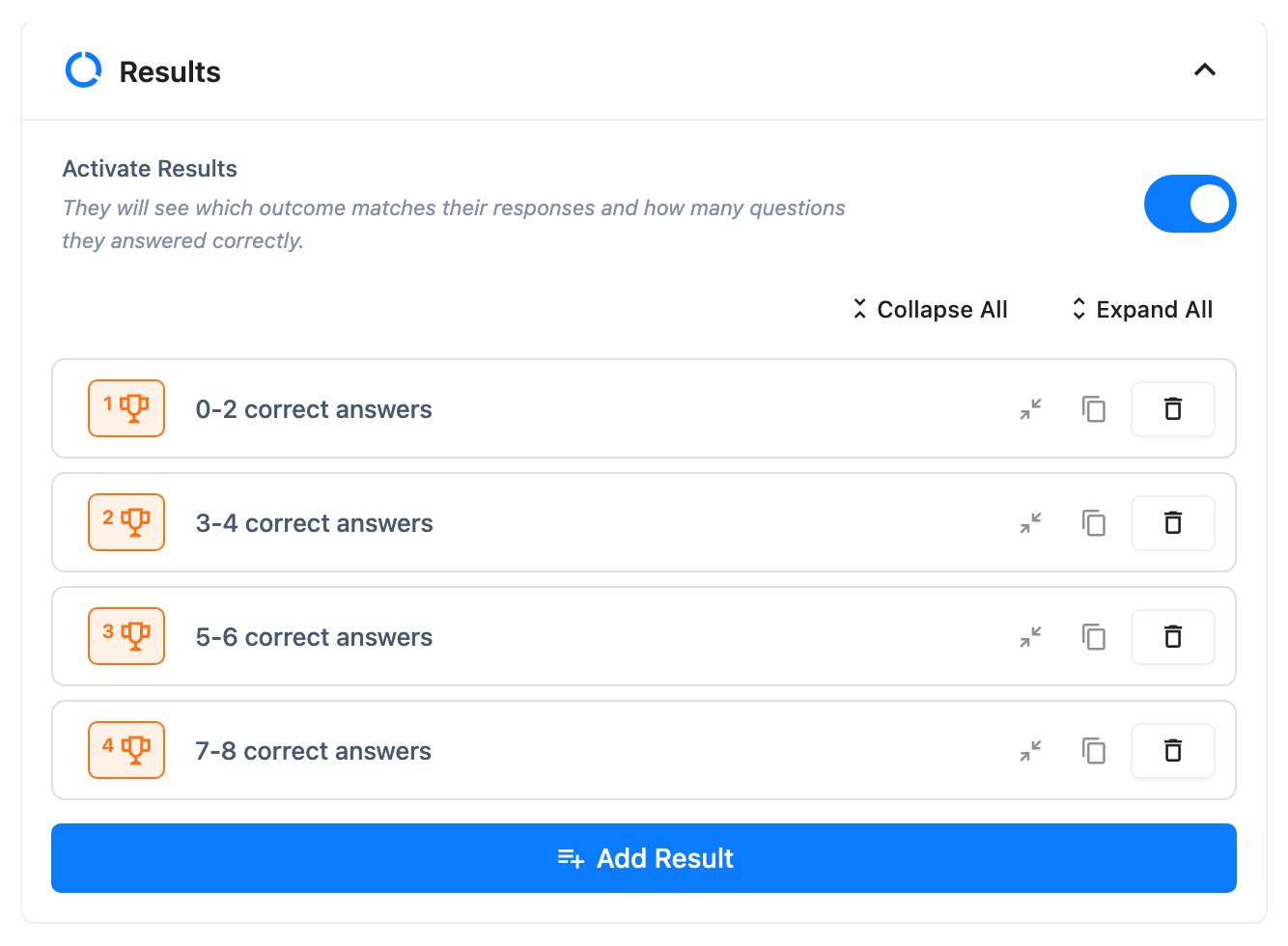
Result screens (Knowledge Quiz, Personality Test)
Free supports exactly one result screen; Pro supports any number, added the same way as closing screens. On Pro, the Add Result button disappears once you've added as many results as there are possible score bands for the survey's question count — you can't add more results than the scoring can ever distinguish between.
Knowledge Quiz: score bands
Pro divides the possible score range (0 up to the number of questions) into as many contiguous bands as you have result screens, with any leftover scores going to the earliest bands. A respondent's correct-answer count decides which band, and which result, they land on.
Personality Test: which result wins
Each answer option can carry a weight toward one or more results. When a respondent finishes, their weights are summed per result, and the result with the highest total is shown. If two results tie, the one you added first wins.
The CTA button
Every closing and result screen can carry a call-to-action button: a label, a URL, and whether it opens in a new tab (on by default). This field exists in both editions' data, but free's editor locks it — the "Enable CTA Button" row shows a lock icon and can't be turned on. Pro can turn it on and edit all three fields.
Which screen a respondent actually sees
If a survey has both Closing and Result content, only one shows, in this order:
- If skip logic sends the respondent's last answer straight to a specific result or closing screen, that one shows, overriding everything below.
- On a Quick Vote survey where the setting to show the vote count is on, the respondent lands on the Closing screen instead of a result, so the vote results are reachable from there.
- Otherwise, if results are turned on for this survey and at least one result screen exists, the result screen shows.
- Otherwise, the closing screen shows, if one exists.
The post-submit redirect (Pro)
There's a separate setting for sending a respondent to a URL of your choosing right after they submit, instead of showing a screen at all: Page Redirect URL, on the survey's General tab — not on the Closing section, even though it's about what happens after submission.
A quiz score or personality result always wins over the redirect; only the closing screen honours it. If your survey shows a result screen for a respondent's answers, they see that result screen regardless of what you set as the redirect URL.
What respondents see
- One screen after their last answer: a closing screen, a result screen, or (Pro, closing-screen case only) a redirect straight to your URL — never more than one.
- A CTA button, if you turned one on and are on Pro.
- On a personality test or quiz, content that reflects their specific answers rather than one fixed message.