Animation, answer order and other display options
A handful of visual behaviours live in Settings, not in a theme — they apply site-wide, to every survey, rather than being something you pick per survey or per theme. This page covers each one.
All of these live in the SurveyX admin menu, under Settings → the Appearance panel, unless noted otherwise.
Appear animation
Content, answers and buttons can animate in as a respondent reaches them.
Appear animation needs Pro. Free shows the three options disabled. See pricing.
- In the SurveyX admin menu, click Settings, then open the Appearance panel.
- Under Appear Animation, pick Fade In, Staggered, or Zoom In.
Fade In is the off state. Despite the name, picking it applies no animation at all — only Staggered and Zoom In actually animate anything in. This is a global setting: it applies to every survey, and it never runs on a results screen.
Alphabet answer labels
Multiple choice, dropdown and image choice questions can show a letter (A, B, C, D…) before each answer option.
- In the SurveyX admin menu, click Settings, then open the Appearance panel.
- Turn Display Alphabet Labels on or off.
This setting is free on both editions and defaults to on. It applies to multiple choice, multi-select, dropdown, image choice and multi-image choice questions — it never appears on any other type.
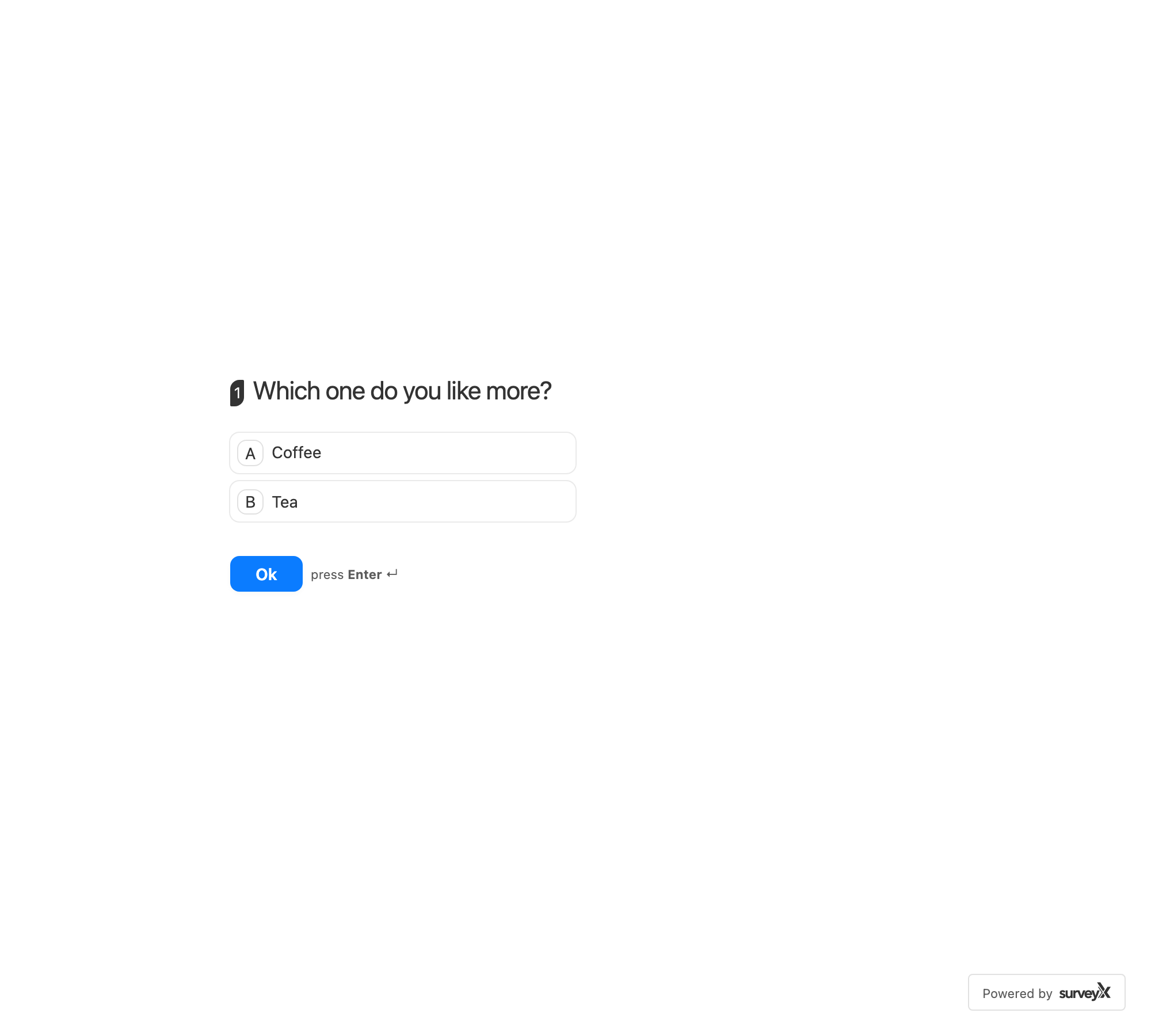
If you've never opened Settings on a fresh Pro install, the switch here can render off even though respondents already see labels — the plugin's own default is on regardless of what this screen shows. Open Settings → Appearance once and save, and the switch and the real behaviour line up from then on.
Answer order
There's no survey-wide "shuffle every question's answers" setting. Randomising order is a per-question toggle called Randomize Order, available on multiple choice, multi-select, dropdown, image choice, multi-image choice and Yes/No questions. See Choice questions and Text and contact info for where to turn it on.
Image size on the front end
SurveyX can serve survey images at a smaller size than the original upload, for faster loading.
- In the SurveyX admin menu, click Settings, then open the Appearance panel.
- Under Frontend Image Size, pick one of your WordPress site's registered image sizes, or Full size (original) to use the uploaded file as-is.
The default is Automatic (answers medium, others full size): answer images — the thumbnails in
a choice list — are served at WordPress's medium size, while cover, question-header, closing and
result images stay full size. Picking an explicit size instead applies it uniformly everywhere,
answer images included.
If the size you picked stops existing later — for example after switching your WordPress theme — SurveyX falls back to the full-size image rather than breaking.
Default cover layout
Settings → Appearance also sets which cover layout new surveys start with.
- In the SurveyX admin menu, click Settings, then open the Appearance panel.
- Under Default Cover Layout, pick Stacked, Image left, Image right, or Full screen.
This only applies to a survey whose own cover layout is set to "Default," and only on a survey's
own page — an embedded [surveyx] shortcode always renders stacked regardless of this setting. See
Set your survey's title and cover for the four layouts themselves
and how to override this per survey.
Settings reference
| Setting | Default | Applies to | Free/Pro |
|---|---|---|---|
| Appear Animation | Fade In (off) | Every survey | Pro only |
| Display Alphabet Labels | On | Multiple choice, multi-select, dropdown, image choice, multi-image choice | Both |
| Randomize Order | Off | Per question — see Choice questions | Both |
| Frontend Image Size | Automatic (answers medium, others full size) | Every image in every survey | Both |
| Default Cover Layout | Stacked | New surveys, and any survey left on "Default" | Both |
What respondents see
With Staggered or Zoom In turned on, content and answers animate into view as the respondent reaches them; with Fade In (the default), nothing animates. With Display Alphabet Labels on, a respondent sees a letter before each option on the question types listed above. Image sizing and cover layout affect how quickly a survey loads and how its cover looks, not its content.
Troubleshooting
I picked Fade In and nothing animates. That's expected — Fade In is the off state. Pick Staggered or Zoom In for an actual animation.
Alphabet labels aren't showing on a question. Check the question's type — labels only apply to multiple choice, multi-select, dropdown, image choice and multi-image choice. Every other type never shows them, regardless of this setting.
The Appearance panel looks wrong on a fresh Pro install. Open it and click save once — see the note above. After that, what the panel shows matches what respondents actually see.