Build a custom theme
A custom theme is your own set of colours, fonts, sizing and background, saved once and reusable across every survey. Reach for it when none of the 22 built-in themes match your brand closely enough, or when you need something a built-in theme can't do — a background image, a Google Font, or your own CSS.
Building and editing custom themes needs Pro. See pricing.
Steps
- In the SurveyX admin menu, click Themes.
- Click Add New, type a name for the theme, and click Submit. The editor opens.
- Work through the Content, Container, Background and Custom CSS sections below, changing whatever you want — every field is optional.
- Click Save changes.
To edit a theme you already built, open a survey's General tab, find Survey Theme, select the theme, then click Edit Theme.
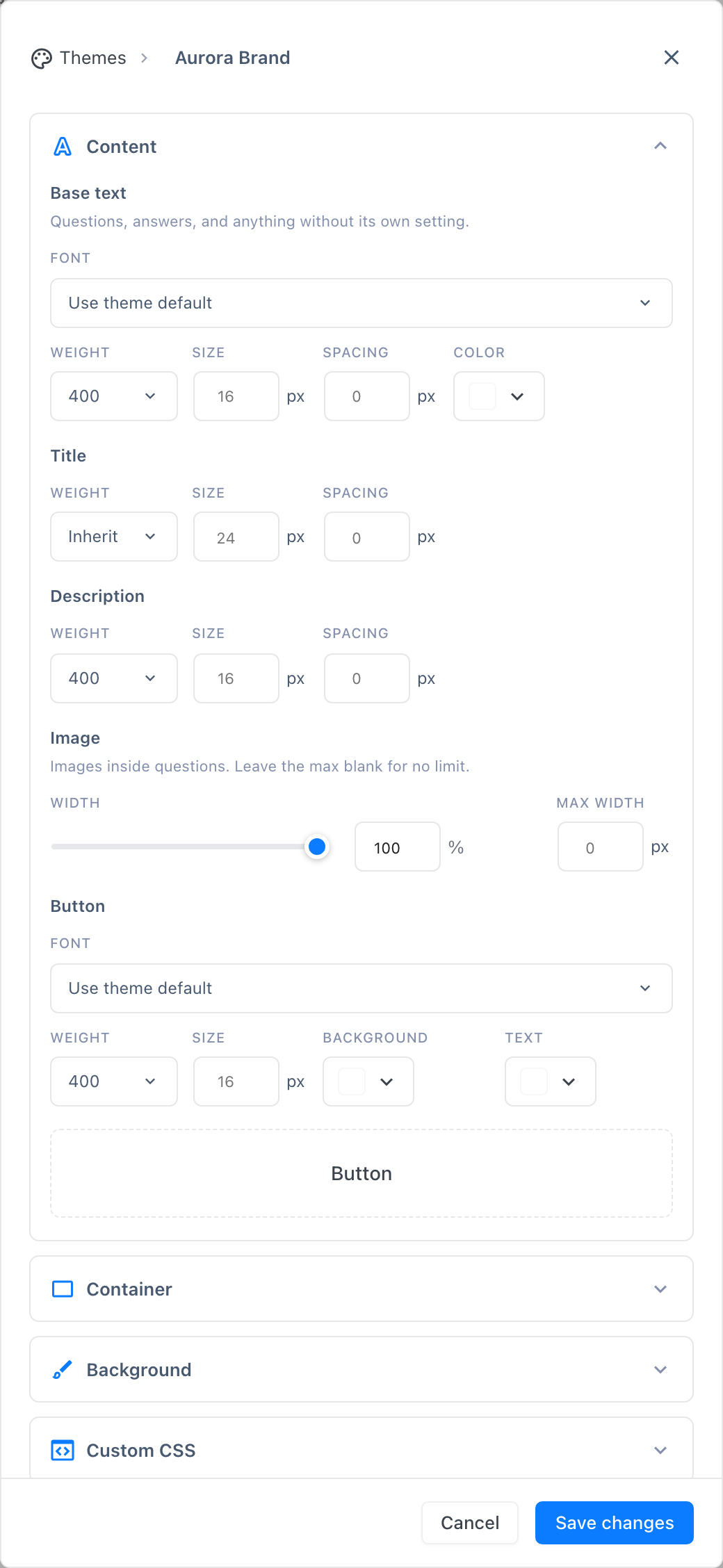
Content — text, images and the button
| Element | What it controls | Weight default | Size default | Spacing default |
|---|---|---|---|---|
| Base text | Questions, answers, and anything without its own setting | 400 | Blank (inherits SurveyX's own default) | Blank |
| Title | The survey and question titles | Blank (inherits base text) | Blank | Blank |
| Description | Cover and question descriptions | 400 | Blank | Blank |
| Button | The label on every button | 400 | Blank | No Spacing field |
Every element gets its own Weight and Size. Only Base text and Button get a
Font picker of their own — Title and Description have none and always inherit the base font.
Base text, Title and Description also get Spacing (letter spacing, −10 to 10 px);
Button doesn't. For colour, Base text carries a single Color picker, and Button
carries separate Background and Text colour pickers instead — Title and Description have
no colour field of their own. A blank weight, size or spacing field is deliberate, not a bug — it
means "inherit," so a theme you built months ago never silently restyles itself if SurveyX's own
defaults change later. Spacing is the one field where 0 is a different, real setting: typing it
cancels SurveyX's own tracking outright, rather than leaving the field blank to inherit that
default.
Font on Content and Button opens the same picker: Google Fonts, or one of 18 built-in system fonts (Arial, Georgia, Times New Roman, and others) listed first. Leave Button font on Inherit and it uses whatever you set for Content.
The Google Fonts picker (1,907 fonts) is part of the custom theme builder, so it needs Pro too. Typing a search narrows the list; the dropdown only ever renders 100 matches at a time, so search by name rather than scrolling. The front end only requests the fonts a theme actually uses, never the whole catalogue.
Image sets the width (0–100%) and an optional max width (up to 1,200 px) for images inside questions. Leave max width blank for no limit.
Container — sizing the survey itself
| Field | What it does | Limits |
|---|---|---|
| Min Height | Minimum height of the survey wrapper | Number + unit (vh or px); blank = auto. Shortcode/embed mode only — a survey's own page ignores this |
| Content Width | Maximum width of the survey column | Up to 1,600 px; blank = SurveyX's own default |
| Corner Radius | Rounds buttons, cards and inputs everywhere in the theme | 0–24 px, default 8 |
Background — three layers
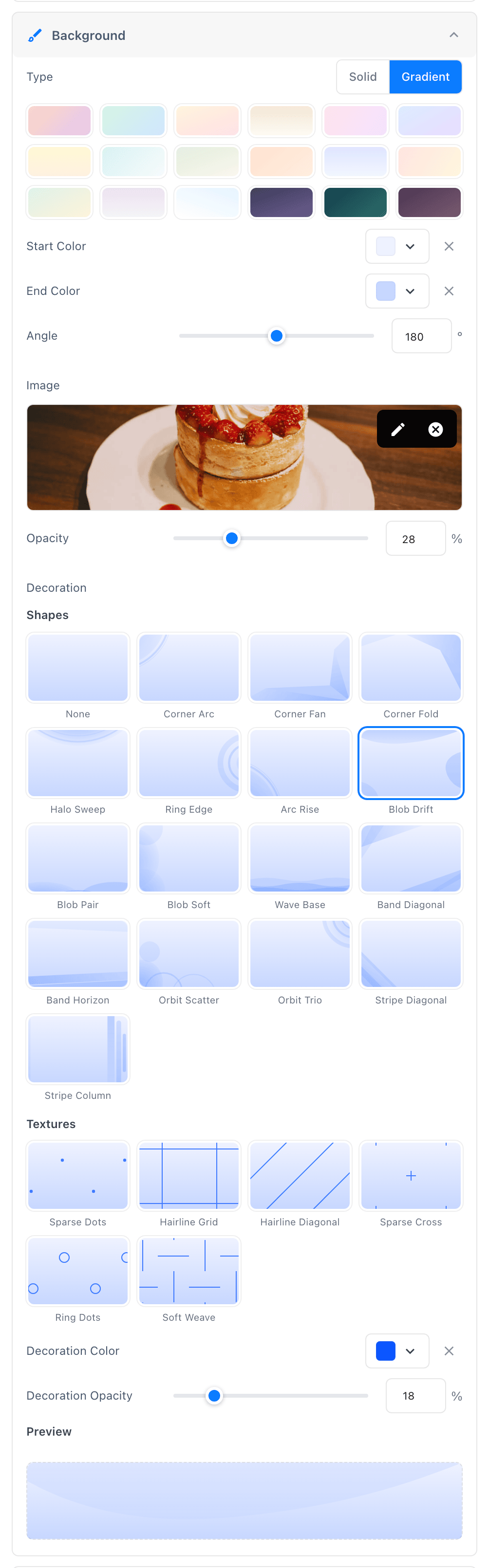
A theme's background is built from up to three independent layers, stacked in this order:
- Type — Solid (one colour) or Gradient (Start Color, End Color, Angle 0–360°). A row of curated presets fills all three gradient fields in one click; the fields stay editable after.
- Image — an optional image from the WordPress media library, laid on top of the solid or gradient base, with its own Opacity (0–100%).
- Decoration — an optional decorative pattern (shapes or textures) from SurveyX's built-in catalogue, laid on top of everything else, with its own Decoration Color and Decoration Opacity (0–100%).
A live Preview swatch at the bottom of this section shows the colour or gradient and the decoration as you edit — but not the uploaded image. The image is painted as a separate layer by the survey itself, so the swatch cannot composite it. To check an image background, open the survey.
Custom CSS
The Custom CSS section is a plain code box. Whatever you write is appended after the theme's own generated styles, so a rule here can override anything the builder set above it.
The editor lists 13 selectors you can target, each with a copy button:
| Selector | Targets |
|---|---|
.surveyx | Main wrapper |
.surveyx-shortcode | Shortcode container |
.sx-body | Content body |
.sx-header | Survey header |
.sx-footer | Survey footer |
.sx-nav | Navigation buttons |
.sx-question | Question wrapper |
.sx-question-title | Question title |
.sx-answers | Answers container |
.sx-answer | Individual answer |
.sx-btn | Buttons |
.sx-btn-primary | Primary button |
.sx-cover-image-wrap | Image wrapper |
Custom CSS is sanitised as HTML on save, not parsed as CSS — it strips disallowed HTML tags but doesn't validate CSS syntax, so ordinary CSS text always survives. There's no live linting: a typo in a selector or property does nothing, with no error shown.
What respondents see
Everything you set here — colours, fonts, sizes, background, custom CSS — renders on the survey itself, for every respondent, the moment you save. A blank field falls back to SurveyX's own base styling rather than breaking the layout, so an unfinished theme is always safe to save and come back to later.
Troubleshooting
Survey too wide or narrow. Set Content Width in the Container section — leave it blank to use SurveyX's own default column width.
Fonts don't match my site. The theme's Content and Button fonts are independent of your WordPress site's theme — set them explicitly here rather than assuming SurveyX inherits your site's font.
Min Height isn't doing anything. It only applies when the survey is embedded with the
[surveyx] shortcode. On a survey's own page, this field is ignored.
My Custom CSS doesn't seem to apply. Check the selector is one of the 13 listed above, or a descendant of one. There's no error shown for an unrecognised selector — it's silently ignored.
I can't see which surveys use this theme. Open the theme's editor and check the Surveys section — it lists every survey currently assigned to it.