Build a Personality Test
A Personality Test scores respondents by adding up weighted answers, then shows whichever result scored highest — a personality type, an archetype, a recommendation, whatever result set you build. The weighting mechanism works on free; what free can't do is give you more than one question or more than one result to land on.
Pro required for more than one question or result
Free is limited to one question and one result screen, same as every survey type. A Personality Test with real range — several questions feeding into several possible results — needs Pro. See pricing →
Set it up
- Start a new survey and choose Personality Test as its type.
- Add your question(s) and answer options. See Choose a question type.
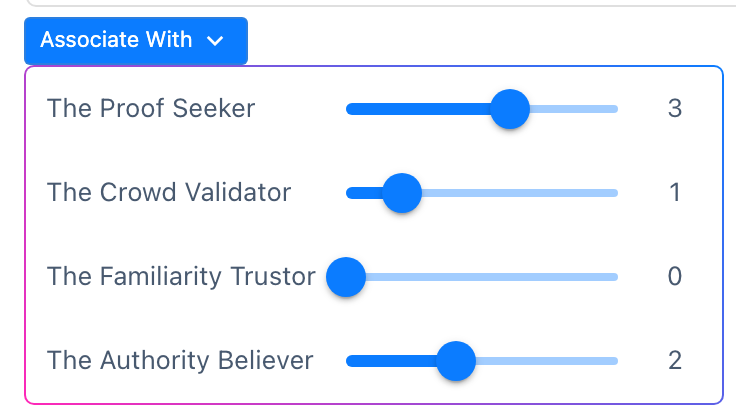
- Turn on Activate Results and add your result screens, one per outcome. See Personality Test: which result wins for exactly how SurveyX picks the winning result and what happens on a tie. Associate With doesn't appear on an answer option until results are activated, so do this step first.
- On a multiple choice, multi-select, dropdown, yes/no, image choice, or multi-image choice question, open each answer option's settings and set Associate With — a slider from 0 to 5 — for every result you want that answer to count toward. Leave it at 0, the default, for a result it shouldn't affect.
What respondents see
- Their question(s), same as any other type.
- After their last answer, the result screen whose weighted total is highest for the answers they picked — not a fixed thank-you message.
Settings reference
| Field | What it does | Default | Free/Pro |
|---|---|---|---|
| Associate With | Per answer option, how strongly it counts toward a given result (0–5) | 0 | Free & Pro |