Build a Knowledge Quiz
A Knowledge Quiz marks each answer correct or incorrect and can show respondents a green tick or red cross as they go. Add result screens and SurveyX sorts respondents into a result based on how many questions they got right.
Free is limited to one question and one result screen, same as every survey type. A quiz worth scoring — several questions with score-based results — needs Pro. See pricing →
Set it up
- Start a new survey and choose Knowledge Quiz as its type.
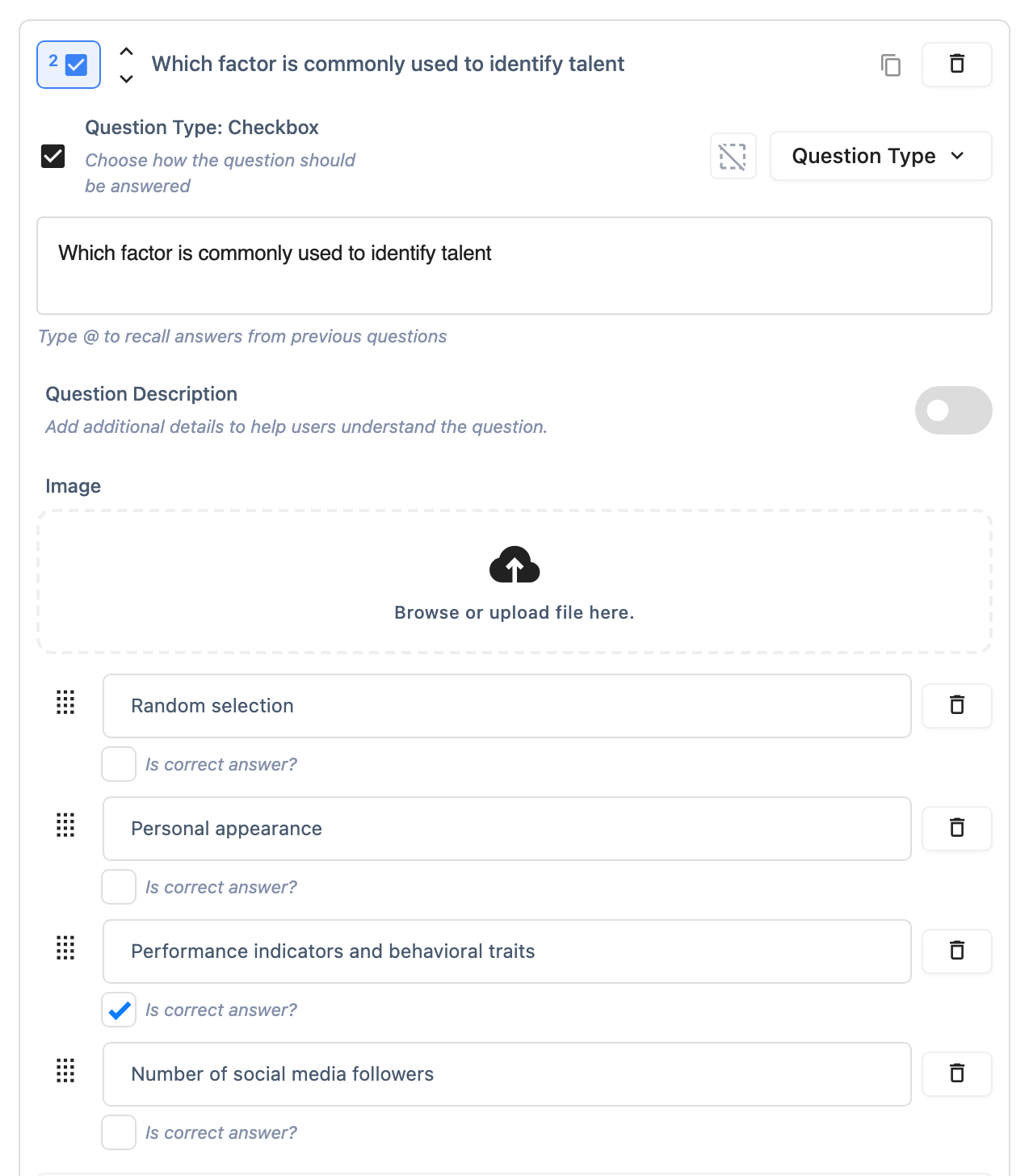
- Add your question(s), using multiple choice, multi-select, dropdown, yes/no, image choice, or multi-image choice — the types that carry individual answer options. For each question, mark exactly one option as Is correct answer?. SurveyX only ever keeps one correct answer per question: marking a new one clears whichever was marked before. The first option you add is marked correct by default, so check this on every question before you rely on it.
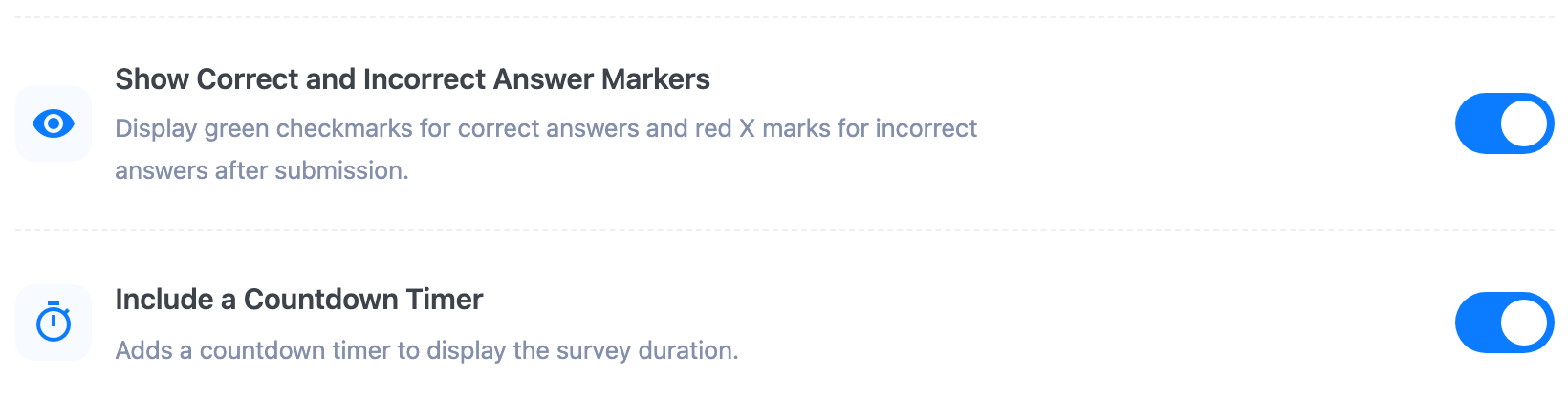
- On the survey's General tab, turn on Show Correct and Incorrect Answer Markers to have respondents see a green tick or red cross as they answer each question, and Include a Countdown Timer to add a timer. Both are off by default.
- Add your result screens. See Knowledge Quiz: score bands for how SurveyX splits the possible scores into bands and matches a respondent's score to one.
Include a Countdown Timer is a plain on/off — there's no duration field anywhere for it, on either edition. It's a survey-wide setting on the General tab, not something you set per question.
What respondents see
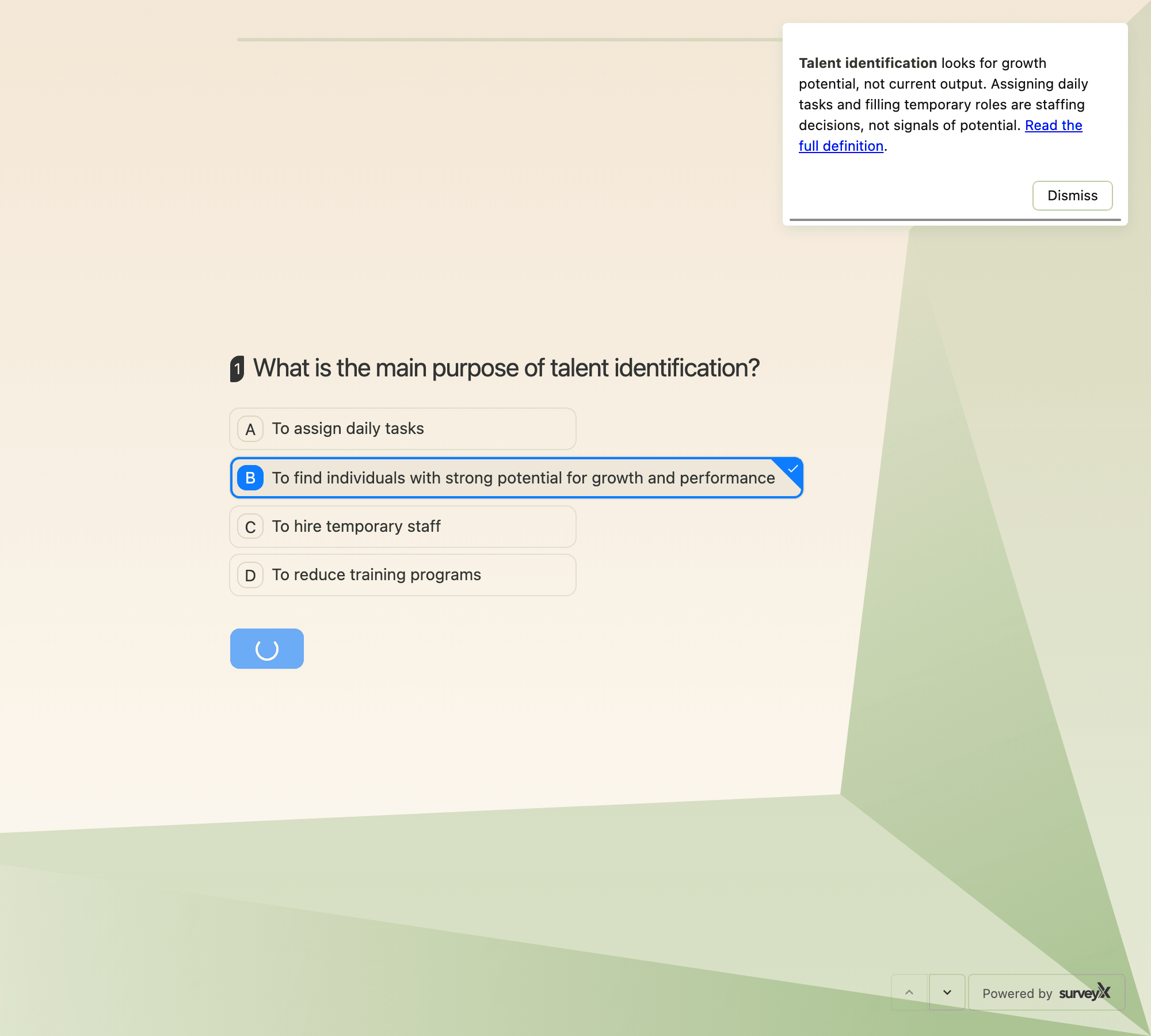
- Their question(s), with a green tick or red cross after each one if Show Correct and Incorrect Answer Markers is on — the quiz pauses briefly on that question so they see the mark before moving to the next one.
- A countdown, if Include a Countdown Timer is on.
- After their last answer, the result screen matching their score band — not a fixed thank-you message.
Answer feedback in a quiz
A quiz has three ways to tell respondents how they did, and each one does a different job.
Markers say right or wrong without any text from you. Show Correct and Incorrect Answer Markers, on the survey's General tab, puts a green tick on every correct option and a red cross on a wrong pick. It is survey-wide, it exists only on a Knowledge Quiz, and Contact Info, Opinion Scale and Rating questions never show markers even when it is on.
A per-question message carries your own words. Turn on Show Message After Answering inside the question and type what the respondent should read once they answer. The same text goes out whether they were right or wrong. See Show a message after someone answers for the formatting you can use and how long the message stays on screen.
Result bands carry the longest text. On the Results section of the Editor tab, each band covers a range of correct answers and holds a Title plus an optional Result Description, both rich text. A band is tied to a score rather than to a question, so it is the only place in a quiz where a longer explanation can live.
With markers on, the quiz pauses about a second on the question it has just marked before moving to the next one. The message keeps its full ten seconds either way, so it is still on screen while the respondent is reading the next question.
Settings reference
| Field | What it does | Default | Free/Pro |
|---|---|---|---|
| Is correct answer? | Marks one answer option per question as correct | First option added, until changed | Free & Pro |
| Show Correct and Incorrect Answer Markers | Shows a correct/incorrect indicator as each question is answered | Off | Free & Pro |
| Include a Countdown Timer | Adds a countdown while the quiz is taken | Off | Free & Pro |
| Show Message After Answering | Shows your own message once a question is answered, the same text for right and wrong | Off | Free & Pro |